What the provider ID does
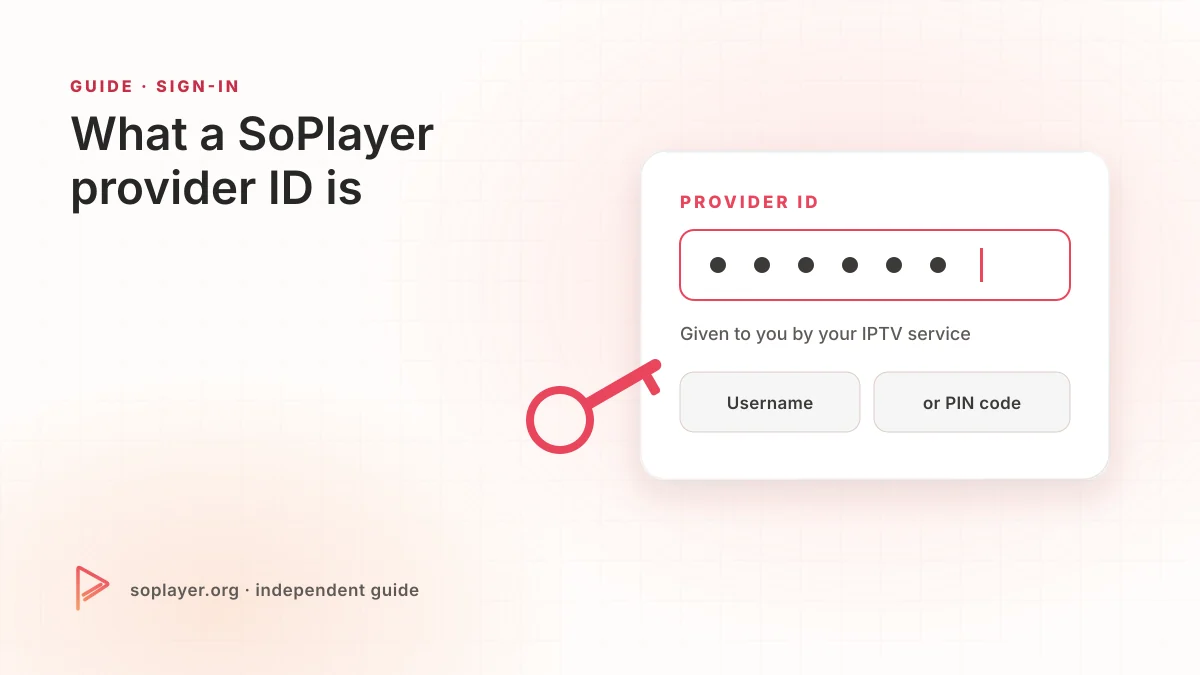
SoPlayer is a player with no channels of its own. Store listings describe it the same way: you need access from a service provider, and that provider gives you a provider ID and your login details. The ID tells the app which service's servers to contact. Your login then tells that service who you are.
Think of it as two locks. The provider ID picks the building; the username and password (or PIN) open your flat. Getting the first right and the second wrong, or the other way round, both end in a failed sign-in, but for different reasons.
Where the ID comes from
Only your provider or the reseller who sold you the subscription can give you a provider ID. It usually arrives in the welcome message or email sent after you pay or start a trial. If you bought access through a reseller, ask the reseller first; they often hold the ID on the provider's behalf.
Websites that post "free SoPlayer provider IDs" are not a source you should use. An ID without a valid account behind it will not sign you in, and an ID that does work for someone else's account is not yours to use.
This site does not issue, sell or list provider IDs. We have no connection to any IPTV service.
Entering it in the app
- Open SoPlayer after installing it. On first launch it asks you to pick a light or dark look.
- Choose Provider ID and type the number exactly as your provider sent it.
- Select Submit. If the ID is recognised, the next screen asks how you want to sign in.
On a Fire TV or TV box, the on-screen keyboard makes it easy to hit a neighbouring digit. Check the field before you submit.
PIN or username login
Setup guides for Fire TV show two sign-in routes after the provider ID: a username and password, or a PIN code. Which one you use depends on what your provider handed out. Some services give both; many give one.
| Method | What you type | Typical source |
|---|---|---|
| Username + password | Two fields, case-sensitive | Welcome email from the provider |
| PIN code | A short numeric code | Provider or reseller, sometimes per device |
When the ID is rejected
A rejected provider ID almost always has one of three causes:
- A typing mistake. Re-enter it slowly; compare digit by digit.
- The service changed or ended. Providers sometimes move customers to a new ID. Your seller will know.
- An app update reset the saved details. Users have reported being asked again after updating. Re-enter the same ID; if it no longer works, contact the provider.
The SoPlayer troubleshooting guide covers the login errors that come after the ID screen.
Accounts and devices
The app holds one provider sign-in at a time. To switch to a different account, sign out and sign in with the other details. Whether you can watch on two screens at once is set by your plan's connection limit, not by SoPlayer. Install the app on each device and sign in on each with the same details, within whatever limit your provider allows.
Ready to install? The APK link, version details and a safety note are in one place on the homepage.
Download Now